
An external USB camera can work with Android when the device supports USB Host/OTG, the camera follows UVC standards, and the app can access the required video format, bandwidth, and power
External USB cameras are increasingly used with Android phones, tablets, industrial terminals, kiosks and embedded devices when the built-in camera is not suitable for the required field of view, working distance, mounting position or image quality.
In many cases, a standard UVC USB camera can connect to an Android device through USB-C or an OTG adapter. However, compatibility is not guaranteed simply because the camera is UVC compliant.
A successful Android USB camera setup depends on several factors:
This guide explains how to connect an external USB camera to Android, what UVC compatibility really means, why some cameras are not detected, how resolution and frame rate affect performance, and what developers and equipment manufacturers should test before integrating a USB camera into an Android-based product.
Android's USB framework allows Android devices operating as USB hosts to communicate with attached USB peripherals. Android's compatibility requirements also define external USB cameras around the USB Video Class standard when a device implementation exposes external-camera support.
Yes, many Android phones, tablets and embedded Android devices can use an external USB camera.
The most common configuration is:
UVC USB camera → USB-C or OTG connection → Android device → USB camera application
However, there are two different levels of compatibility that are often confused.
The Android device recognizes that a USB peripheral has been connected.
An application or Android camera implementation can actually open the camera, select a supported video format and display the video stream.
A phone may detect a USB device without the default Android Camera app being able to use it.
This is why an external USB camera for Android often requires an application specifically designed to access UVC devices.
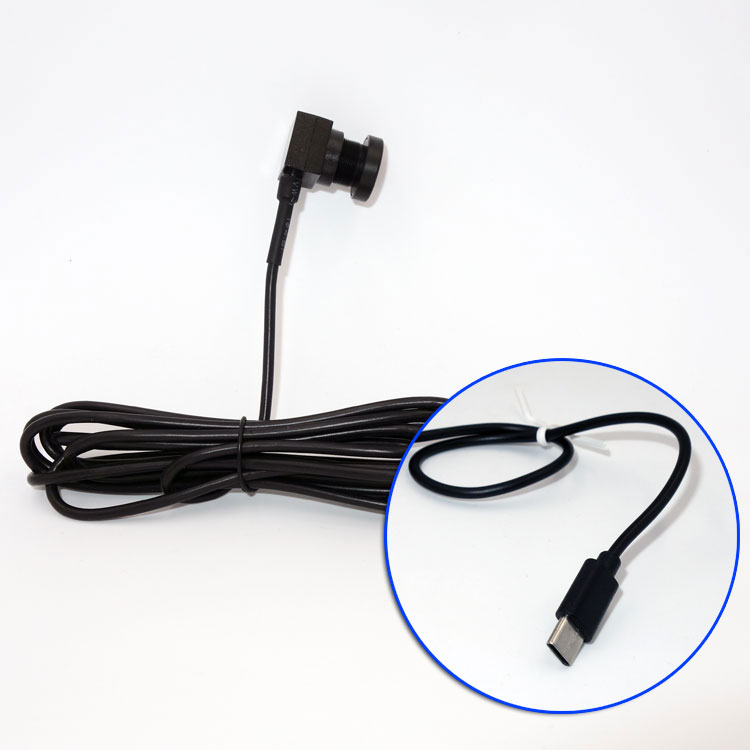
UVC stands for USB Video Class.
A UVC camera follows a standardized USB device class for transmitting video, which reduces the need for a proprietary camera driver on many operating systems.
Android recognizes USB video as a defined USB device class, and Android devices that formally implement external-camera support through a USB host port are required by Android's compatibility definition to support UVC 1.0 or higher.
This makes UVC an important starting point for:
But there is an important limitation:
UVC compliant does not mean universally compatible with every Android phone, tablet or application.
The host device, app, USB bandwidth, supported video formats and available power still matter.
For a basic setup, you normally need four things.
The camera should expose standard UVC video modes such as MJPEG or YUY2/YUYV.
The Android phone, tablet or industrial terminal must be able to operate as the USB host.
Android provides USB Host APIs for detecting and communicating with connected USB peripherals through classes such as UsbManager, UsbDevice and UsbDeviceConnection.
Depending on the Android device, this may be:
The stock Camera application on an Android phone may not automatically use an external USB camera.
A third-party UVC camera application or a custom Android application is often required.
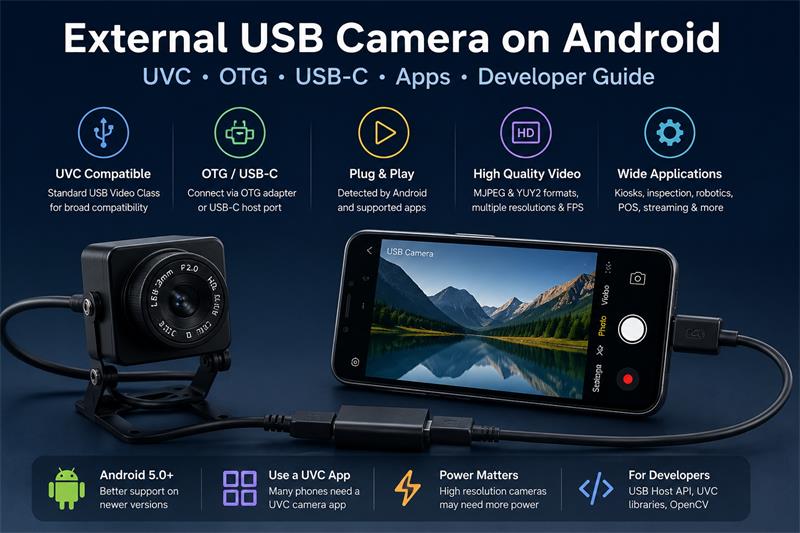
The terms USB-C camera, OTG camera and Android USB camera are often used interchangeably, but they describe different parts of the connection.
USB-C describes the physical connector.
OTG, or USB On-The-Go, traditionally refers to the ability of a mobile device to operate as a USB host for attached peripherals.
A modern Android device with USB-C may support USB Host operation directly, but simply having a USB-C connector does not guarantee support for every external camera.
For commercial hardware, the safest approach is to test the camera with the exact Android host rather than relying only on the connector type.
The basic process is simple.
Check the Android device specifications or test it with a known USB peripheral.
Use the appropriate USB-C cable or OTG adapter.
Avoid unnecessarily long or low-quality USB cables during initial testing.
Use an application that explicitly supports UVC cameras.
When the USB device is detected, Android may ask for permission to allow the application to access it.
Start with a moderate video mode such as:
If that works reliably, test higher resolution or frame rate.
Do not test only whether a picture appears.
Run the camera continuously and check:
For commercial products, a five-minute test is not enough.
This is one of the most common searches related to Android external USB cameras.
Several different problems can produce the same symptom.
The camera needs the Android device to operate as the host.
A camera may be visible to the USB subsystem without being available inside the default camera application.
This is especially common with:
A powered USB hub can help determine whether insufficient power is the problem.
A camera may work at 720p but fail or become unstable at a higher resolution or uncompressed frame rate.
OTG adapters and USB-C cables can cause intermittent problems that look like camera compatibility issues.
Android device manufacturers can implement USB and camera functionality differently.
This is why compatibility should always be tested on the actual target hardware.
The answer requires some nuance.
Android includes a USB host framework that applications can use to communicate with connected USB devices. Android's compatibility definition also specifies UVC requirements for devices that implement platform-level external-camera support.
However:
not every Android device exposes every UVC camera through the standard Camera app or Camera2 API.
Some systems rely on:
For developers and product manufacturers, it is important to distinguish between:
USB device access
and
Android Camera API integration.
They are not always the same thing.
Often, yes.
Many consumer Android devices do not automatically switch the built-in Camera app to a connected external UVC camera.
A dedicated USB camera application can normally:
For a commercial Android product, relying on a generic third-party app may be useful for prototype testing, but a production system often needs its own application or controlled software environment.
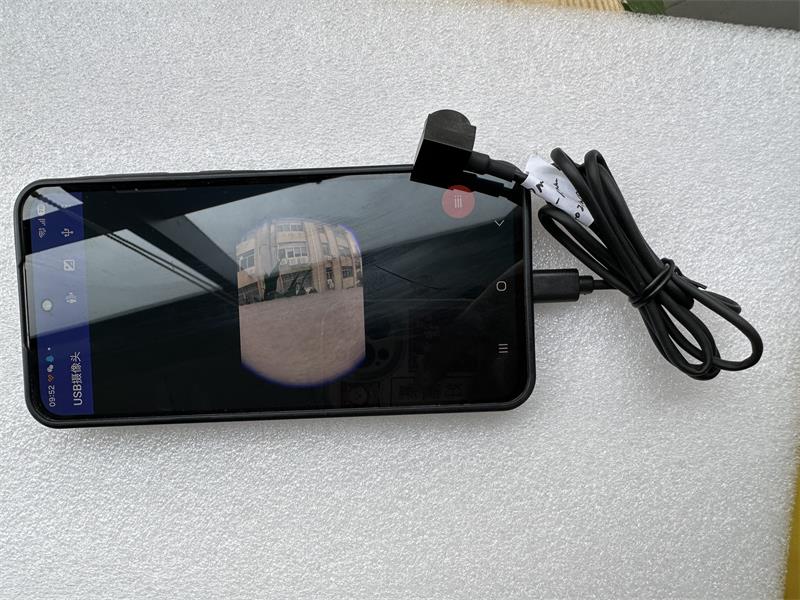
This is one of the most important compatibility topics and is often overlooked.
A USB camera may advertise multiple video formats, but each format has very different bandwidth requirements.
MJPEG compresses each video frame individually.
Advantages:
Trade-offs:
YUY2 is an uncompressed YUV video format.
Advantages:
Trade-offs:
This explains why an Android USB camera may support:
1920 × 1080 at 30 fps in MJPEG
but only a much lower resolution or frame rate in YUY2.
When evaluating an Android UVC camera for OpenCV, machine vision or image processing, always check the actual format and frame-rate combination—not only the sensor resolution.
Another common misunderstanding is that the sensor's maximum resolution determines what the Android application will display.
It does not.
The actual operating resolution depends on the complete chain:
image sensor → USB camera controller → UVC mode → USB bandwidth → Android host → application
For example, a camera may have a 5MP sensor but the Android application may open only:
Possible causes include:
For developers, the correct approach is to query the camera's supported UVC modes rather than assuming the sensor's maximum resolution will be available.
For many Android applications, USB2 is sufficient.
Typical use cases include:
USB3 becomes more important when the application requires:
But USB3 also increases integration requirements.
The Android device must support the required USB speed, and high-performance cameras may require more power.
For embedded Android systems, verify the actual USB controller and port configuration rather than assuming that a USB-C connector automatically means USB3.
A USB camera consumes power from the Android host unless external power is provided.
This can be a major issue for:
Symptoms of insufficient power can include:
For troubleshooting, test with a powered USB hub.
For a commercial device, power budget should be part of the design from the beginning.
Sometimes.
A small USB camera may operate directly from an Android phone, while a larger camera may exceed the available power budget.
There is no single answer that applies to every Android device.
The correct questions are:
For a production system, measure rather than assume.
Developers normally have two broad approaches.
Android provides APIs for detecting USB devices, requesting permission and communicating with USB interfaces and endpoints.
This gives developers low-level access to USB peripherals.
However, handling a UVC video stream directly requires additional UVC parsing and streaming logic.
Many commercial and open-source applications use a UVC library to simplify:
For embedded products, the development choice depends on whether the camera must behave as:
Developers should not assume that every UVC camera will automatically appear as a Camera2 device.
Android's external-camera architecture can expose supported external cameras through the platform camera framework, but this depends on the Android device implementation.
The Android Compatibility Definition distinguishes external cameras as an optional device capability. When such platform support is implemented for a USB-connected external camera, UVC support is required.
For a controlled embedded Android product, the hardware manufacturer may integrate the external camera more deeply into the Android camera stack.
For a generic consumer phone, a UVC application is often the simpler path.
Yes, but the integration method matters.
OpenCV normally processes image frames after another component has acquired them from the USB camera.
A typical pipeline is:
UVC camera → USB capture layer → decoded image frame → OpenCV
Applications may then perform:
For computer vision applications, test:
A camera that looks good to the human eye is not automatically the best camera for machine vision.
Android USB cameras are commonly useful when the camera must be physically separated from the display or processor.
Examples include:
External cameras can be positioned independently from the Android display for:
A USB camera can be integrated into:
Industrial tablets may use an external camera for:
External USB cameras can be used as imaging components in specialized instruments, although regulatory and medical-device requirements are separate from basic Android/UVC compatibility.
A compact camera may be mounted:
Android-based robotic systems may use external USB cameras for auxiliary vision, teleoperation, inspection or non-safety-critical computer vision.
A USB camera can add imaging capability without redesigning the host processor's native camera interface.
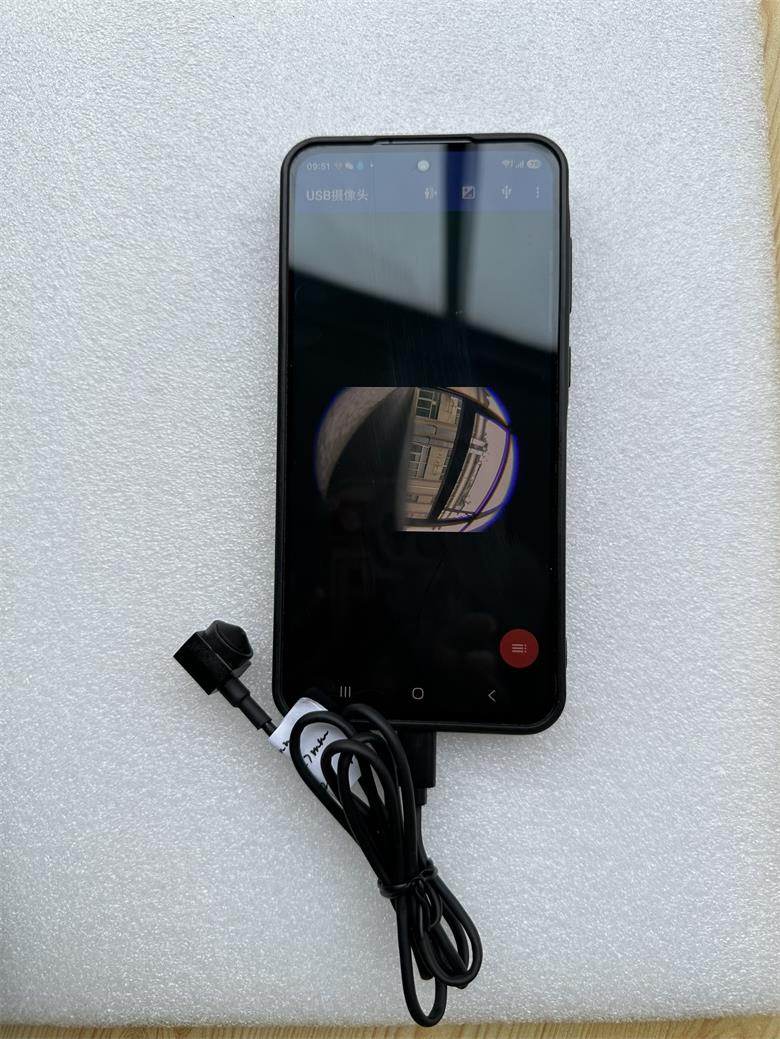
The built-in camera is ideal for consumer photography, but commercial equipment often needs different characteristics.
An external camera can provide:
For industrial or commercial systems, mechanical integration can be more important than megapixel count.
Lens selection should be based on the application rather than choosing the widest lens available.
The important parameters are:
For example, a close-range inspection system may require a narrow FOV at a fixed 200–300 mm working distance.
A kiosk may need a moderate wide-angle lens.
A confined-space camera may require a pinhole or very small lens.
A robot may require a wide-angle view but still need low distortion for computer vision.
Before selecting a lens, define:
working distance + required scene width/height
instead of specifying only a lens angle.
A 120°, 150° or fisheye lens captures a large scene, but it may introduce:
For human viewing, this may be acceptable.
For geometric computer vision, measurement or edge detection, a narrower lens can sometimes produce better usable data.
If wide-angle imaging is required, check whether distortion is predictable and whether the application can perform camera calibration and undistortion.
Neither is universally better.
Often preferred for:
Advantages include predictable focus and fewer moving parts.
Useful when:
However, autofocus behavior can affect consistency in machine-vision systems.
For a fixed installation, manual or fixed focus is often simpler.
Latency can come from several stages:
For real-time applications such as:
measure end-to-end latency on the actual Android host.
A nominal 30 fps stream does not guarantee low latency.
Automatic exposure can improve brightness in low light, but it may also increase exposure time.
For a moving camera or moving object, long exposure can create motion blur.
For computer vision applications, useful camera controls may include:
Not every UVC camera or Android application exposes every control.
These should be tested before selecting a camera for a production system.
Here is a practical sequence.
| Problem | What to Check |
|---|---|
| Camera not detected | USB Host/OTG, cable, app, power |
| Camera connects then disconnects | Power supply, cable quality |
| Only low resolution works | USB bandwidth, UVC mode, app support |
| Low frame rate | MJPEG vs YUY2, resolution, host CPU |
| Image freezes | Power, bandwidth, decoder load |
| Built-in Camera app cannot see it | Use a UVC-capable app |
| Image is blurry | Focus, working distance, lens |
| Wide-angle image looks distorted | Lens distortion and calibration |
| High latency | Buffering, MJPEG decode, app pipeline |
| Camera works on PC but not Android | Host/app compatibility differences |
For a commercial product, do not qualify a camera only by connecting one sample to one phone.
Test the complete intended system.
Important validation items include:
If the camera will become part of a production product, repeat the test across multiple camera samples.
These are different use cases.
The user usually cannot modify:
The easiest solution is normally:
standard UVC camera + compatible application.
The manufacturer controls:
This allows deeper integration and more predictable qualification.
For commercial systems, a controlled Android host usually reduces compatibility risk.
Potentially, yes.
Android's external-camera compatibility framework allows implementations to support multiple external cameras, but real-world behavior depends on the Android device, USB controller, bandwidth, power and application.
Before designing a multi-camera Android system, test:
Two cameras that work independently may not work reliably at the same time.
No. The phone must support USB Host/OTG operation, and the software must support the camera.
Not necessarily. UVC is an important compatibility layer, but the host, app, power and supported video modes still matter.
Yes, if the Android device supports USB Host operation and the cable connection is correct.
Windows and Android have different camera software stacks, applications and device implementations. The same UVC camera may behave differently.
Sometimes, depending on the device implementation. On many devices, a separate UVC-compatible app is needed.
Potentially, but USB bandwidth, video format, host performance, power and application support all have to be sufficient.
MJPEG uses less USB bandwidth and is often easier for higher-resolution USB2 streaming. YUY2 is uncompressed but requires much more bandwidth.
Yes. The application must first acquire frames from the UVC camera and then pass those frames to OpenCV.
Yes, provided the tablet supports the camera reliably and the application is designed for external USB video.
Yes in a properly designed system, but long-duration testing is essential. Power, heat, app stability and reconnect behavior should all be validated.
That depends on the camera hardware. Board-level and industrial USB cameras often use replaceable M12, CS or C-mount lenses, while consumer webcams usually do not.
Start from the required working distance and scene width/height. Focal length should be calculated from the sensor size and required FOV rather than selected only by an advertised viewing angle.
Before choosing an external Android USB camera, confirm these points:
For a consumer experiment, connecting the camera and getting a live image may be enough.
For an Android-based commercial product, kiosk, inspection device, robot or industrial terminal, the correct approach is:
qualify the camera together with the exact Android host, software, lens and operating conditions.
That is more important than simply choosing the camera with the highest resolution.
Follow Me
Address:A615, 6F, Huachuangda Building, No107 Xinghua 1st Road, 43 District, Xinan street, Baoan, shenzhen, China 518101